
Contents (11)
- [Operating System] File System
- 1. Blocks and Fragments
- 2. Inode
- 3. Directory
- 3.1 File Names and inodes
- 3.2 Mount Points, Hard Links, Symbolic Links, and Windows Shortcuts
- 4. Mapping File Descriptors to inodes
- 5. Disk Structure
- 5.1 Mount Handling (How do we see files on other devices??)
- 6. Frontend: (My Favorite) PNPM, Symbolic Links, Hard Links, and Inodes Explained
- Wrapping Up
[Operating System] File System
The UNIX file system supports File and Directory objects. But since a Directory is actually just a special kind of File, you can think of the file system as a concept for representing Files.
1. Blocks and Fragments
Most file systems are filled with data blocks, and those blocks hold the user's files. So let's take a look at how these data blocks get stored on disk!
The sector size of a disk (secondary storage) is usually 512 bytes. (These days it's mostly 4kb!!) So it might seem better for speed to make the data block bigger than those 512 bytes (4 kb), but in reality, if you have a huge number of small files, internal fragmentation can get pretty bad. That's why, early on, file systems used a large block size (ex. 8kb) for every block of a file and finished the file off by using n small fragments (1kb) only for the last block. (ex. 26kb file => 8+8+8+1+1)
These block and fragment sizes can be decided when you create the file system, and it's a good idea to set them to fit what you'll be using the file system for. For example, you can think about the settings like this.
If you expect lots of small files to be created, it's better to set the fragment size small, and
if you frequently transfer large files, it's better to set the block size large.
Aspect | Block | Fragment |
|---|---|---|
Meaning | The basic allocation unit of the file system | A sub-unit that splits a block into smaller pieces |
Size | Usually 4KB, 8KB, etc. | Smaller than a block (e.g., 512B, 1KB, etc.) |
Purpose | Fast disk access and handling large files | Reducing wasted space when storing small files |
Usage | Most of a file is stored in block units | Used only for the last part of a file |
Why | Blocks are made large to improve disk performance | Exists because small files waste space when blocks are too large |
In practice, though, the [block size:fragment size] ratio should be at most [8:1], and the minimum block size should be 4kb. So the typical settings look like this.
Setup for mostly small files: 4kb block / 512byte fragment combo
Setup for mostly large files: 8kb block / 1kb fragment combo
Now I have this feeling-ish feeling that I get why we so often use powers of two for field data sizes when creating DB tables. Memory, disks, buffers, pages: they all use powers of two, so sizing things to fit them exactly should make for more efficient programming. When building a website, wouldn't it be way more efficient to limit file sizes, like images, to multiples of 4kb too?
2. Inode
Files are represented by inodes. An inode is a record that stores information about a file. inode stands for "index node"; it was originally written as i-node, but over time it came to be written as inode.

An inode contains information such as the file's user and group identifiers, the last modification/access times, the number of hard links, and the file type (regular file, directory, symbolic link, character device, etc.). An inode also has 15 pointers that point to the disk blocks where the file's data is stored. Of these, 12 pointers point to direct blocks, and these pointers hold the addresses of the blocks where the data is stored. What this means is that small files (12 blocks or fewer) can reference their data right away. That's because a copy of the inode is kept in main memory, and if the block size is 4kb, you can directly access up to 48kb of data through the inode. If the file is large, you also have to go through the indirect blocks that the remaining 3 pointers point to. These remaining 3 pointers reference a single indirect block, a double indirect block, and a triple indirect block, respectively. Take the single indirect block: if one block is allocated as 4kb and we assume an address is 4 bytes, the single indirect block stores the addresses of 1024 data blocks, and you access the data blocks through those addresses.
Direct blocks: 4kb * 12 pointers = 48kb accessible
Single indirect block: (4kb / 4-byte block pointer size) * 4kb = 4096kb accessible
Double indirect block: (4096 kb / 4-byte block pointer size) * 4kb = 4194304kb accessible
Triple indirect block: (4194304kb / 4-byte block pointer size) * 4kb = 4294967296kb accessible (so inefficient that it only exists in theory)
Apparently the old 4.2BSD file system only went up to the double indirect block, so through an inode you could access 4194304kb => a bit more than 232 bytes, and that 232 value matters because the file offset in the file structure in main memory is stored as a 32-bit word. Since the file pointer is a signed integer and you need to be able to seek both forward and backward within a file, the actual maximum file size is said to be 232-1 bytes (4GB).
Today we use 64-bit operating systems, so things look like the table below. In fact, modern operating systems still use the inode concept, but they don't use the indirect block structure.
Item | 32-bit system | 64-bit system (practically doesn't use the indirect block structure) |
|---|---|---|
Max file size | About 2–4 GB | Theoretically about 8 EB |
File offset size | 32-bit (signed) | 64-bit (signed) |
Below is the extent data structure used in more modern operating systems.

An extent is a way of storing the offset and count of contiguous blocks. Since it allocates contiguous blocks, there's less fragmentation, and it's more efficient because inode data access can be handled with a small number of extents (compared to the data block approach).
3. Directory
Regular files and directories aren't distinguished at the implementation level. What I mean is that a directory's contents are also stored in data blocks and represented by an inode. The only difference is that the inode's type is different from a regular file's, and the contents have a structure.
3.1 File Names and inodes
Users identify files by path name, but the file system defines files by inode. So the OS needs to be able to connect path names to inodes, and directories play that role. The process of turning a file name into an inode goes like this.
First, determine the starting directory.
If the path name starts with /, start from the root directory.
If it doesn't start with a slash (/), use the current process's current directory as the starting point.
Check the starting directory's file type and access permissions, and return an error if there's a problem.
The next component of the path (up to the next / or the end of the string) is a file name.
Look up this name in the starting directory, and return an error if it's not there.
If the path has another component, the current inode must be a directory,
and if it isn't a directory or access is denied, return an error.
Then search that directory again in the same way as above.
This process repeats until the end of the path name to find the inode you want. The reason it goes step by step like this is that whenever it runs into a mount point or a symbolic link, it has to switch over to a different directory structure.
If the inode is found through the open() system call, a file structure for that inode is allocated, and a file descriptor refers to that file structure. And since converting directory name -> inode happens a lot, a directory name cache is usually built and used.
3.2 Mount Points, Hard Links, Symbolic Links, and Windows Shortcuts
Here I'll wrap up these four with a comparison summary table. The main reason to use hard links and symbolic links is to let you use the same file from other directories by working with just a path value, without wasting storage space.
Item | Mount Point | Hard Link | Symbolic Link | Windows Shortcut |
|---|---|---|---|---|
Definition | A path that attaches another file system | Shares the same file by inode | References another file path as a string | A reference file for the GUI holding file info |
How it works | Attaches another file system to a directory (USB) | Multiple directory entries are linked to a single inode | Follows the path string and looks it up again | Stores the file path, launch options, etc. in a .lnk file |
Target | Disk, partition, directory | The same file (same inode) | File or directory (path-based) | File or directory (path-based) |
File system | Can be a different file system | Only within the same file system | Can cross file system boundaries (cloud) | Generally used on Windows NTFS |
When the target is deleted | Inaccessible once unmounted | The file stays as long as even one link remains (inode link count) | Becomes a broken link once the target is deleted | Only a warning when the target is deleted; launching fails |
Directory links | Directories only | Usually not allowed for directories (because of . and ..) | Works for directories too | Works for directories too |
Possibility of loops | Not possible | Not possible | Possible (limited to 8 levels) | None |
Example command | mount /dev/sdb1 /mnt/usb | ln file.txt file2.txt | ln -s file.txt link.txt | Right-click → "Create shortcut" |
4. Mapping File Descriptors to inodes

inode mapping starts when a system call that refers to an open file specifies that file by passing a file descriptor as an argument.
The kernel uses the File Descriptor to index into the current process's table of open files.
Each entry in the table has a pointer to a file structure.
That file structure, in turn, has a pointer to an inode.
This inode is an in-memory copy of the one on disk, and it also holds extra values such as how many processes are referencing it. If separate processes each open the same file, the offset (the position you read from or write to) isn't shared, but if you fork, it is shared. (Locking is needed)
5. Disk Structure
The file system that users see is built on top of mass storage devices like disks. Users usually perceive just one file system, but that single logical file system may actually be made up of several physical file systems that really exist. On top of that, we usually want to partition one large disk device into multiple logical devices, and each logical device defines one physical file system.

The figure above shows a structure where the directory structure is divided into file systems, each file system is mapped to a logical device, and those logical devices are made up of partitions of physical devices.
Advantages of partitioning
Separation by purpose: Each partition can be used for a different purpose.
Swap space: Some partitions can be used as swap space for virtual memory.
Better reliability: Even if software corruption happens, only that file system gets damaged, which limits the damage to the whole system.
Higher efficiency: You can tune the block/fragment size for each partition to optimize performance.
Preventing space hogging: It keeps a single program from taking up all the space. That's because a file isn't stored across file system boundaries.
Better backup performance: Since backups are done per partition, the smaller the partition, the faster you can find the file you want on the backup tape, and the faster a full restore is, too.
5.1 Mount Handling (How do we see files on other devices??)
Every system has exactly one root file system, and the other file systems are mounted and merged into the directory structure.
Inside the inode structure there's a bit that indicates whether another file system is mounted on that inode. Suppose a path refers to a mounted file system: the system searches the mount table to find the device number of the mounted device, uses that number to find the inode of the mounted file system's root directory, and then uses that inode.
In this way, the inode of the mounted device's root directory gets connected. (This connection is also why there must always be a root file system.)
6. Frontend: (My Favorite) PNPM, Symbolic Links, Hard Links, and Inodes Explained
The first package manager I used when I got into frontend was NPM. It was painfully slow, and hoisting could even create phantom dependencies. Then I found out about yarn berry and pnpm, and of the two, pnpm looked really appealing because it uses symbolic links and hard links so you don't waste disk space, so I started using pnpm.
pnpm has a storage structure like the one below. (I drew it myself, so it might be wrong..?)
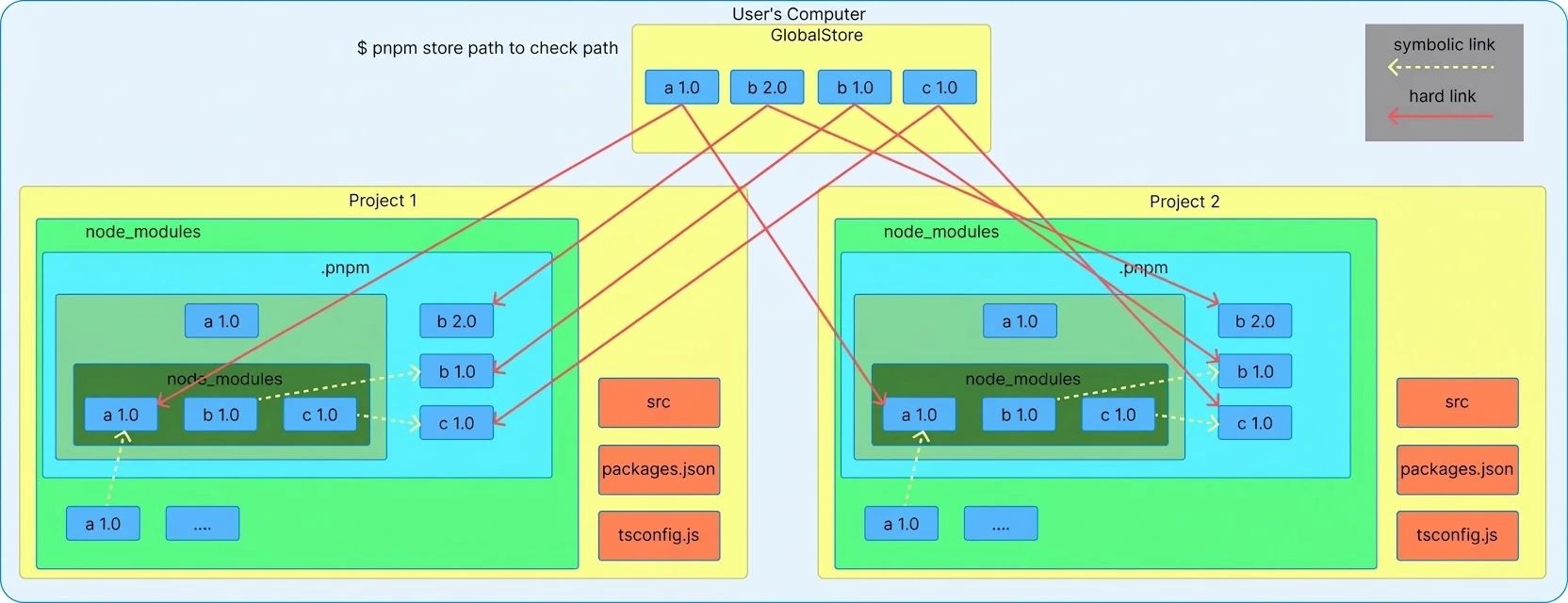
Except for some packages that use native resources (packages with OS dependencies), pnpm creates copies as hard links to the pnpm store, then links the dependency packages with symbolic links, keeping the structure as-is without hoisting. Since it only copies paths, you can save disk space.
Below is an image I took from the pnpm website.

Each project has its own files, but in reality they're all just a single set of files.

Looking at it with the ls -li command, you can also see that the LICENSE file has 51 hard links.

And above, you can even see where each symbolic link points to.
The difference between the two is that with a hard link, there are multiple links sharing the same inode, whereas a symbolic link lets a file with a different inode access the original file.
Hard Link
A hard link doesn't create a new index node (inode). The original file and the hard link point to the same inode.
Hard links don't support directories and only work at the file level. They also can't be used across disk partitions.
The file isn't actually deleted until the original file and all of its hard links have been deleted.
Symbolic Link
A symbolic link stores the path of the original file and uses it to point to the original. It's similar to a shortcut, but different. (A shortcut can't keep the path working in code!!! It doesn't solve path problems)
Symbolic links support both directories and files, and they're a separate file from the original. In other words, the inode value is different and so is the file type. That's why they can reach across partitions too. (Like creating a symbolic link folder in Git, or connecting to the cloud)
Even after the original file is deleted, the symbolic link still exists, but you can't reach the original file through it anymore.
So, is pnpm invincible?? Nope!! That's because there were actually quite a few libraries that couldn't be used with pnpm. In my case, React Native didn't support pnpm, but it only recently started supporting it, and I've been using it since. Be sure to check whether it's supported before you use it.
Wrapping Up
Today we looked at file systems. They've evolved a lot from OS to OS, so I couldn't cover everything. But while researching, I found that the approaches are largely the same, and I think it's best to dig into the details when you actually need them. This is also handy in everyday life. When you need to run several instances of the same program, instead of copying and pasting it directly, you can copy it with symbolic links or hard links and run several of them. (If it's a 10GB game, you're only copying paths instead of 10GB, so that's a huge win)
I hope this post helps you out a lot!!