
Contents (14)
- What is Orca?
- Advantages I felt while using Orca
- Switching workspaces is easy.
- You can check it on your mobile even while commuting.
- The burden of using multiple agents is reduced.
- It is based on Git worktree, so parallel work is convenient.
- Tips learned through actual use
- Using symlinks for node_modules and large test files
- Manage document work in a separate workspace
- Check mobile operations with an emulator
- Check the terminal and code alternately
- Disappointing aspects
- How to use Orca and VS Code together
- conclusion
When developing multiple features, you inevitably have to split your workspace. However, working within a single repository by simply switching branches makes it impossible to develop more than two features simultaneously. Therefore, I use `stash` or leave WIP commits. Also, when working on multiple tasks concurrently, I found that reviewing the work took more time than the actual coding itself.
In the meantime, I heard about Orca IDE from a developer I knew and started using it.
Currently, I handle most tasks in Orca unless I need to write the code myself . I utilize features like autocomplete and linting, and I only use VS Code alongside it when I determine that I need to make detailed direct corrections.
What is Orca?
Orca is a development environment that allows you to run and manage multiple AI coding agents side-by-side.
You can run CLI-based agents like Codex and Claude Code in separate workspaces, and use the Git worktree, terminal, and browser separately for each task.
While typical AI IDEs add AI features to code editors, Orca focuses more on the flow of distributing tasks to multiple agents and verifying the results. That is why the term ADE (Agent Development Environment) is officially used instead of IDE.
Orca does not improve the performance of AI models. Instead, it significantly reduces the management costs associated with handling multiple agents and workspaces.
Advantages I felt while using Orca
Switching workspaces is easy.
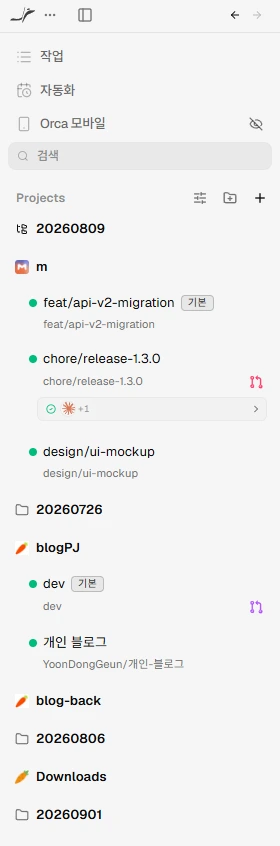
In Orca, you can easily divide workspaces according to your work purpose and switch directly to the workspace you want whenever needed.
For example, you can perform the following tasks in different workspaces.
Function implementation
Bug fixes
Performance verification
test
Document organization
Since terminals, code, and browsers are bundled together in each workspace, the context of your work does not get mixed up. It also reduces the need to search for related terminals and files to check on other tasks.
When multitasking, the tiring part is often not writing code, but the process of recalling, "Where was I just and what was I doing?"
After using Orca , the cost of context switching has definitely decreased because I can check the context directly at the workspace level.
You can check it on your mobile even while commuting.
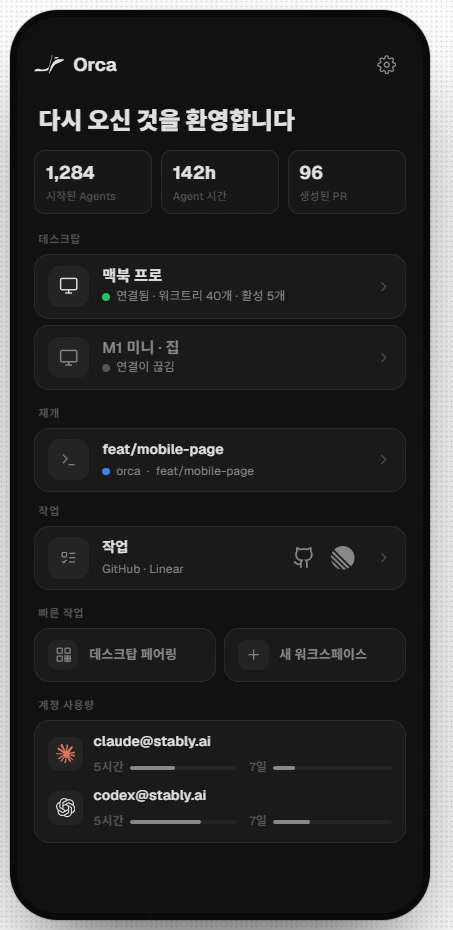
Mobile integration is also a feature that you end up using more often than you might think.
You can check the Agent's progress while commuting, handle additional instructions in advance if needed, or organize completed results.
It was especially useful for time-consuming tasks like the one below.
Codebase Analysis
Large-scale refactoring
Tests and builds
Investigating the cause of the error
Modifying multiple files
You don't have to wait in front of your PC for the work to finish. If you check the results and set the next steps while on the go, the work will already be significantly advanced by the time you arrive at the office or home.
I liked that spare time was converted into actual development time.
The burden of using multiple agents is reduced.
Running multiple agents simultaneously is possible even in a standard terminal. However, as the number of sessions increases, it becomes difficult to determine which agent is doing what.
In Orca, workspaces and states are separated by Agent. This makes it easy to separate roles, such as assigning implementation to one Agent and investigation or verification to another.
In the past, before running an additional agent, I would first think, "Won't turning this on make things more complicated?" Now, it has become natural to create an additional workspace and divide the work.
The bigger advantage is that it doesn't feel complicated even when using multiple agents, rather than the fact that you can use multiple agents .
It is based on Git worktree, so parallel work is convenient.

Orca can separate each task based on a Git worktree.
Parallel work is facilitated because multiple agents do not directly modify each other's changes, even when working on the same repository. It also reduces the effort of stashing changes or managing multiple copies of the repository whenever switching branches.
For example, you can run feature development and bug fixing simultaneously, check the results of each, and then apply only the necessary work.
Unlike simply opening multiple terminals, the workspace itself is separated, so I could comfortably delegate tasks to multiple agents.
Tips learned through actual use
Using symlinks for node_modules and large test files
Worktrees safely distribute tasks, but creating multiple of them can use a lot of storage space.
In particular, if your project contains node_modules or large test files, preparation time and disk usage can increase every time you create a workspace.
If you do not need to duplicate the same files across every workspace, using symbolic links is a good option. By keeping common files in one place and having each worktree reference them, you can reduce both storage space and setup time.
However, it is best not to share in the following cases.
When dependency versions differ by branch
If the file is changed during testing
When different settings are required for each workspace
I recommend starting by associating with safe files, such as read-only test data that is used identically across multiple tasks.
Manage document work in a separate workspace
It is also convenient to separate document organization tasks that are not directly related to code into a separate workspace.
If you continue code implementation and documentation organization in the same session, the context becomes lengthy and work objectives are likely to get mixed up. Creating a dedicated workspace for documentation to organize research results, work processes, and decisions separately makes it easier to find the necessary information again.
It is also well-suited for separating the roles of the development agent and the document cleanup agent.
Check mobile operations with an emulator
For projects where you need to check the mobile screen, it is convenient to connect an emulator.
You can check the results of the agent's work within the same workflow and immediately request fixes if issues are detected. This shortens the gap between implementation and verification compared to the method of generating code first and checking it later in a separate environment.
Check the terminal and code alternately
In Orca, you can see the code and changes immediately while checking the Agent terminal.
The entire process of assigning tasks to an agent, reviewing the results, and issuing revision instructions continues in one place. It was convenient not having to constantly search for the terminal, editor, and Git diff in different programs.
It feels like everything is contained within a single environment, from loop engineering that repeats plan → implement → test → feedback with a single agent, to graph engineering that divides roles across multiple agents and workspaces and connects results.
I think Orca's strength is that it doesn't lose the overall workflow even as the number of agents increases.
Disappointing aspects
The biggest drawback of using Orca was that it was difficult to bring over the development environment I used in VS Code exactly as it was.
I cannot use the existing VS Code settings and extensions in the same way, and it is difficult to use autocomplete, lint, and language-specific development tools in the same way I was used to.
It is convenient for delegating tasks to AI agents and checking the results, but traditional IDEs may be more efficient when a person has to write code manually for a long time.
Also, as the number of worktrees increases, you need to manage disk space and branches. Since leaving finished workspaces open can actually make things more complicated again, it is a good idea to periodically clean up completed tasks.
How to use Orca and VS Code together
Rather than replacing all development tools with Orca alone, I use it by dividing roles.
When instructing Agents to perform tasks and having them proceed in parallel, use Orca
Orca when checking progress and results via terminal, code, and diff
Orca even when checking time-consuming tasks on your mobile during your commute
Use VS Code when coding directly, utilizing autocomplete, lint, and existing extensions.
You don't have to choose only one between Orca and VS Code.
Currently, I only use VS Code when direct coding is required, and handle most other agent-based tasks in Orca.
conclusion
The biggest change since using Orca is not that I can now run multiple agents.
The biggest change was that the management burden did not increase significantly even when handling multiple tasks simultaneously .
You can quickly switch between workspaces to reduce context switching costs and securely separate tasks based on worktrees. While commuting, you can also check time-consuming tasks on your mobile device and issue next instructions.
On the other hand, in situations where I have to write a lot of code manually, VS Code's autocomplete, lint, and extension environment are still more convenient. Therefore, rather than switching all tasks to Orca, I think it is better to divide the work and use each tool for what it does best.
If you are using one or more coding agents like Codex or Claude Code and the cost of managing terminals, branches, and job status has become too high, Orca is worth trying.
I think developers who run multiple tasks in parallel or want to continue monitoring long-running tasks on mobile will particularly appreciate the advantages.